- 29/04/2026
- MyFinanceGyan
- 13 Views
- 0 Likes
- Company Law
How to Register DSC on MCA Portal ?(Step-by-Step Guide 2026)
If you’re planning to register a company or LLP, you’ve probably heard about DSC—but many users get stuck when it comes to actually registering it on the MCA portal. Without DSC registration, you won’t be able to file forms or complete compliance tasks online.
A Digital Signature Certificate (DSC) is essential for secure, authenticated filings. In this guide, you’ll learn exactly how to register DSC on the MCA portal in a simple, step-by-step way—along with tips to avoid common mistakes.
What is a DSC (Digital Signature Certificate)?
A DSC is the digital equivalent of your physical signature. It allows you to sign documents electronically with security and authenticity.
It is commonly used for:
- Company incorporation
- LLP registration
- Filing MCA forms
- Signing financial documents
Why is DSC Registration Required on MCA Portal?
Before you can use your DSC for filing, you must register it on the MCA portal.
Key benefits:
- Secure document submission
- Legal validity
- Faster processing
- Verified identity
Who Needs to Register DSC?
DSC registration is required for:
- Company directors
- LLP partners
- Chartered Accountants
- Company Secretaries
- Cost Accountants
👉 In short, anyone involved in filing forms on the MCA portal must register their DSC.
Prerequisites Before You Start:
Make sure you have the following ready:
- A valid DSC (Class 3 recommended)
- PAN card
- MCA login credentials (User ID & Password)
- DSC drivers/software installed on your system
Step-by-Step Process to Register DSC on MCA Portal...
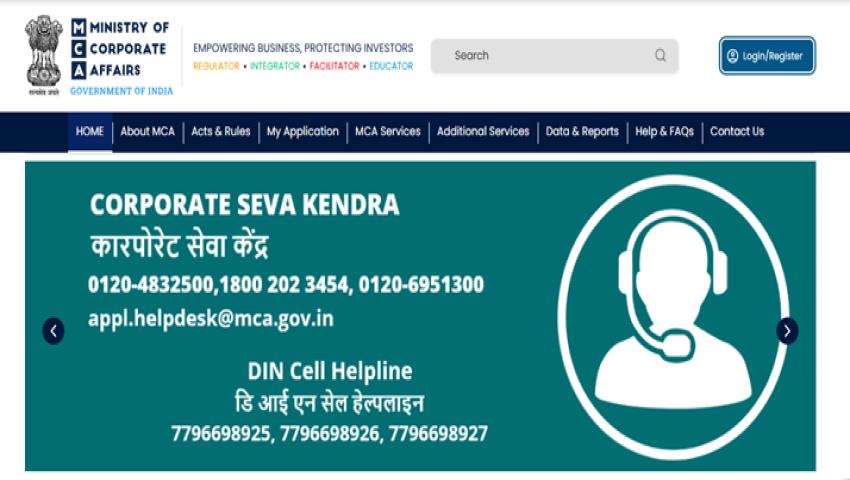
1->
2->
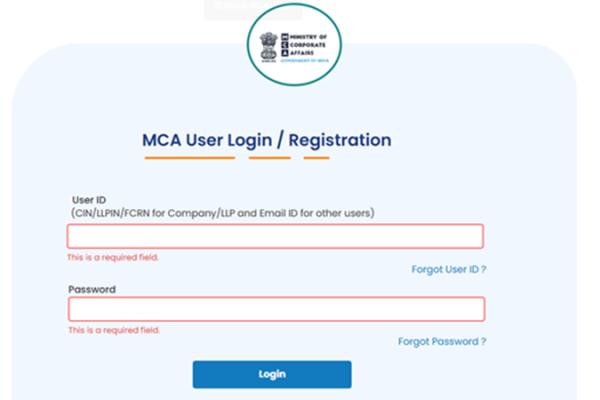
Login to Your Account:
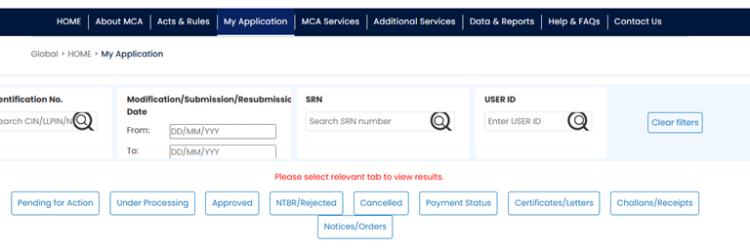
- Click on “My Application”
- Enter your User ID and Password
👉 If it’s your first login, you’ll need to verify using OTP sent to your registered mobile number and email ID.
3->
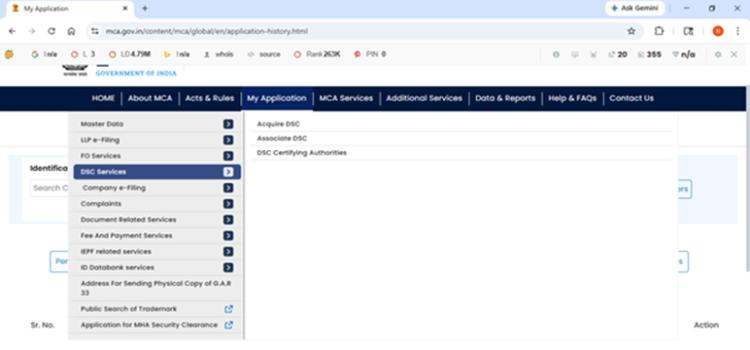
Navigate to DSC Registration
- Go to “MCA Services”
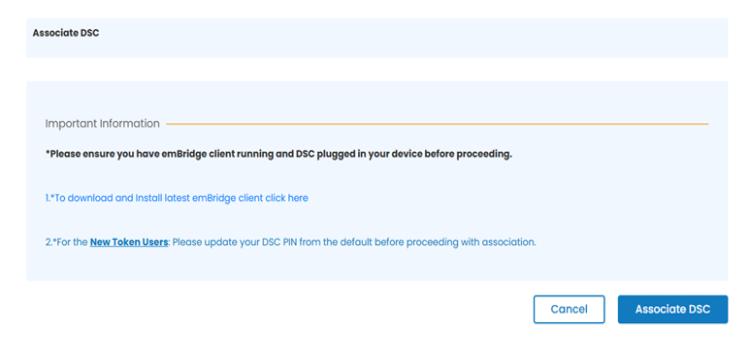
- Click on “DSC Services” → “Associate DSC”
4->
Connect Your DSC Token:
Insert your DSC USB token into your system.
Ensure all required drivers/software are properly installed.
5->
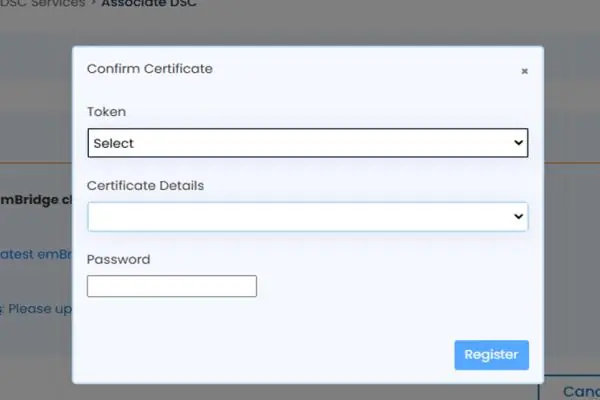
Verify Auto-Fetched Details:
- Your name and details (Director/Partner) will be automatically displayed
- Confirm that the information is correct
6->
Enter DSC Password:
Input the password for your DSC token.
7->
Register DSC:
Click on “Register”.
The system will validate your DSC details.
8->
Confirmation:
Once successful, you will receive confirmation that your DSC has been registered.
Common Errors During DSC Registration:
Many users face issues like:
- DSC not detected
- PAN/DIN mismatch
- Expired DSC
- Incorrect role selection
- Browser compatibility problems
Tips to Avoid Errors:
Follow these best practices:
- Use updated browsers like Chrome or Edge
- Install DSC drivers correctly
- Ensure PAN details match MCA records
- Check DSC validity before registering
- Select the correct role (Director/Professional)
Benefits of Using DSC on MCA Portal:
- Secure transactions
- Legal authentication
- Faster approvals
- Paperless filing
- Smooth compliance process
Frequently Asked Questions (FAQs):
A DSC is a secure digital signature used for filing documents online on the MCA portal.
Yes, it is compulsory for directors and professionals.
It usually takes just a few minutes if all details are correct.
Yes, but each DSC must be linked to the correct user profile.
Check the error, correct the details, and try again.
Conclusion:
Registering your DSC on the MCA portal is a crucial step for hassle-free company and LLP compliance. While the process is simple, even small mistakes can cause delays.
Ensure your DSC is valid, your details are accurate, and you follow each step carefully. Once registered, you’ll be able to file forms smoothly and complete all compliance requirements without any issues.